
Sending Bulk SMS
📤 Sending Messages in GoHighLevel with Signal House
Whether you're just getting started or looking to streamline your message-sending experience, this guide will walk you through:
✅ Setting Signal House as your default SMS provider
✅ Sending a Bulk broadcast to your contacts!
🔧 Step 1: Set Signal House as Your Default SMS Provider
Before you start sending SMS, you need to set Signal House as the default messaging provider.
✅ Here's how:
Login to your GoHighLevel dashboard.
Click on Settings from the left-hand sidebar.
Navigate to Phone Numbers settings.
Click on "Advanced Options"
For Default SMS Provider, change that to "Signal House"
Save your settings.
🔁 This ensures that all SMS flows (manual or automation) are routed through Signal House, not Twilio or other providers.
📇 Step 2: Go to Your Contacts
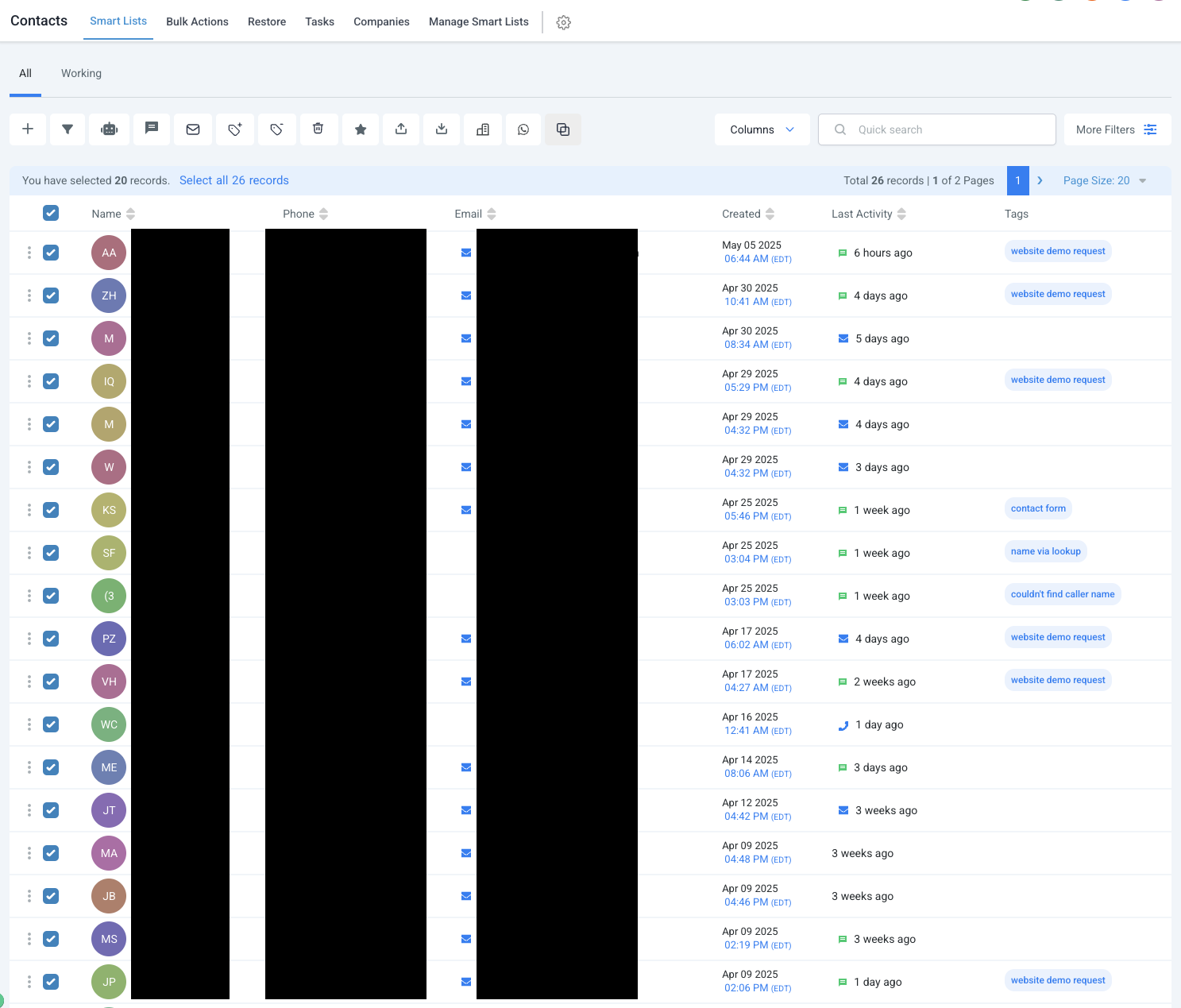
From the GHL dashboard, click "Contacts" on the left-hand sidebar.
Browse or search for the contact list you wish to message.
Select the box to select one or all contacts:
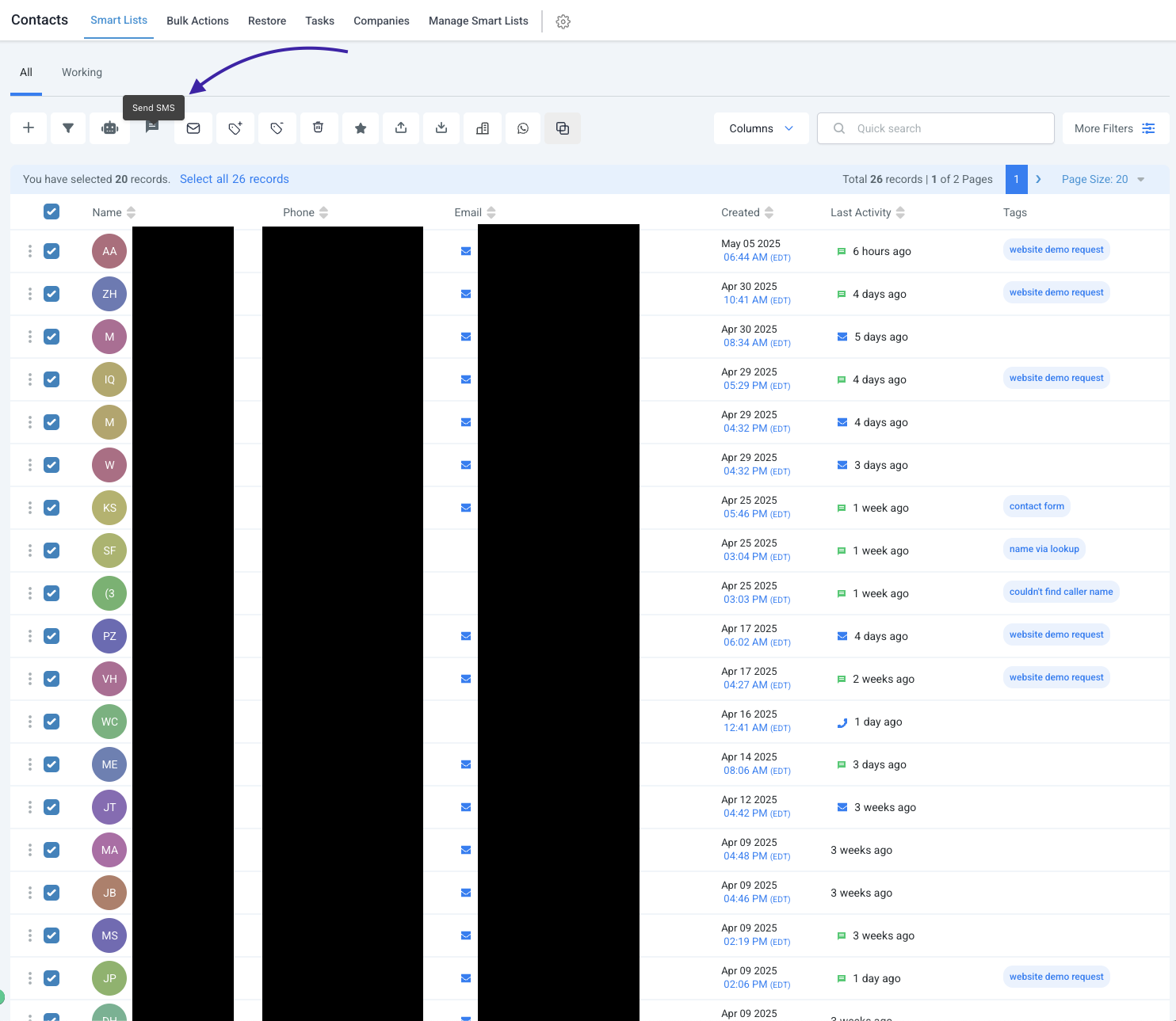
Click "Send SMS" on the top bar
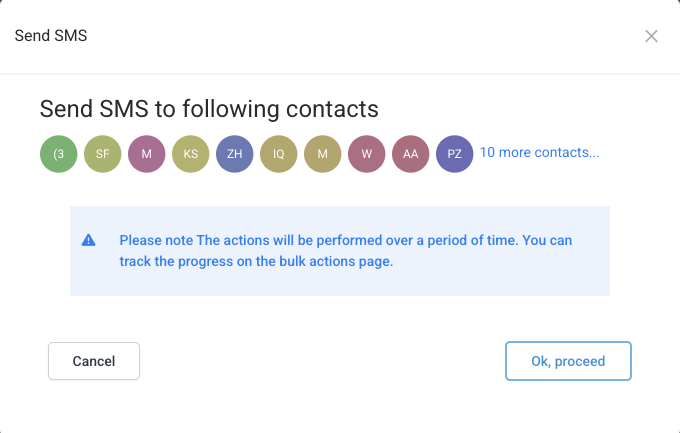
Click "Ok, proceed" on the following screen (Note: Signal House does NOT queue your messages beyond any carrier requirements, so your messages will be delivered immediately when you hit send 🙂)
💬 Step 3: Send the Message
Once inside, you’ll see an option to create a new template or custom message
Simply craft the perfect text, and then hit Send!
Your message will now be delivered via Signal House infrastructure — with deliverability and analytics built-in.
🔁 Optional: Test Your Message Flow
Try sending a message to your own number to confirm it's working.
Check message status in the Signal House Messaging Logs for delivery confirmation and segment count.
✅ TL;DR
Task | How |
|---|---|
Set Signal House as default | GHL Settings → Phone System → Select Signal House |
Send SMS | Contacts → Open a contact → Click “Send SMS” |
Message routing | Routed via Signal House for 10DLC-compliant delivery |
🤝 Need Help?
💬 In-App Chat