Buy a Number
📞 How to Buy a Number in Signal House (GHL App)
Buying a number is the first step to sending compliant A2P (Application-to-Person) messages via 10DLC. The Signal House app inside GoHighLevel allows you to do this in just a few clicks.
🚀 Step-by-Step Guide
Step 1: Launch the Signal House App
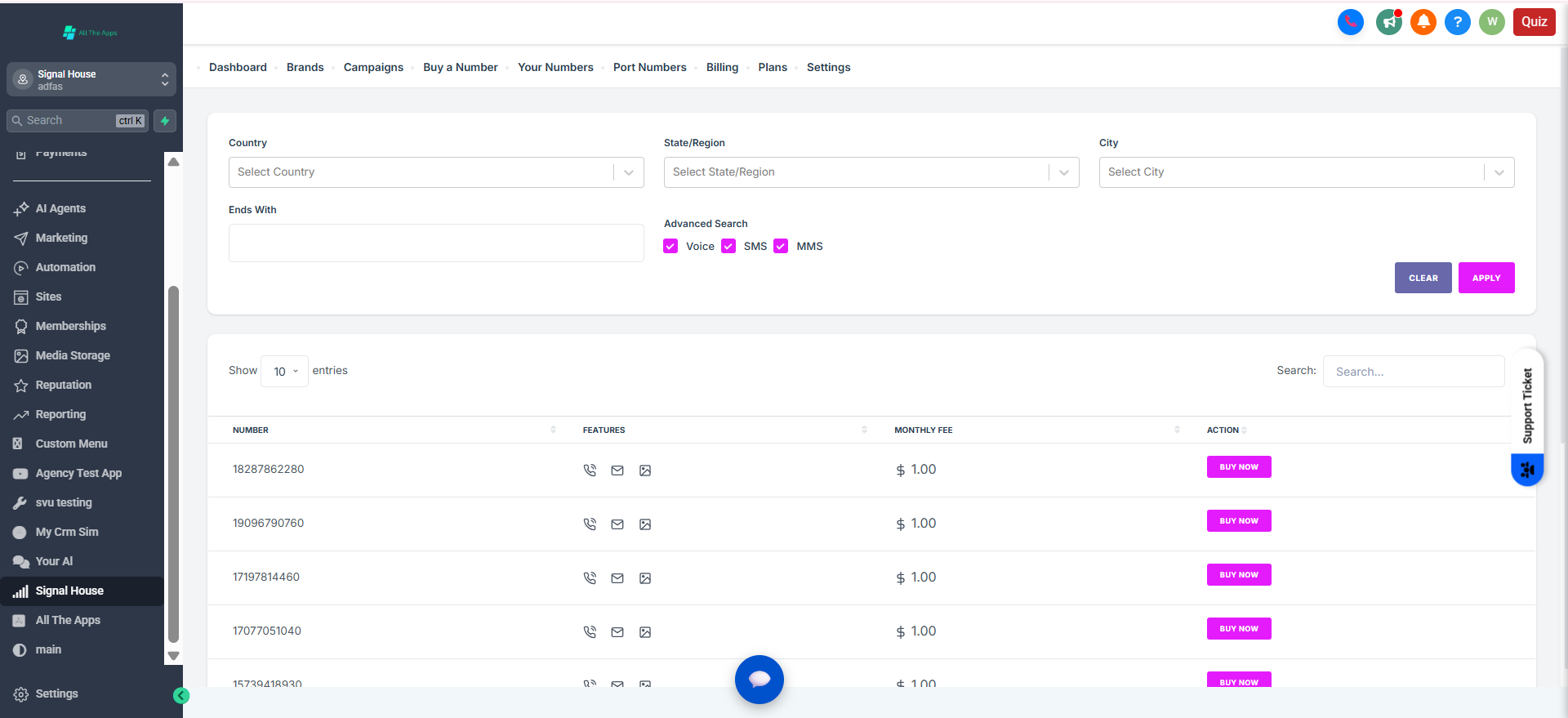
In your GoHighLevel dashboard, open the Signal House app from the left-side menu.
Click on “Buy a Number.”
Step 2: Choose Your Preferred Region
Use the filters to select:
Country (currently U.S.)
State
City or Area Code
The last 3 digits of number
What you'll use the number for (SMS, MMS , Voice)
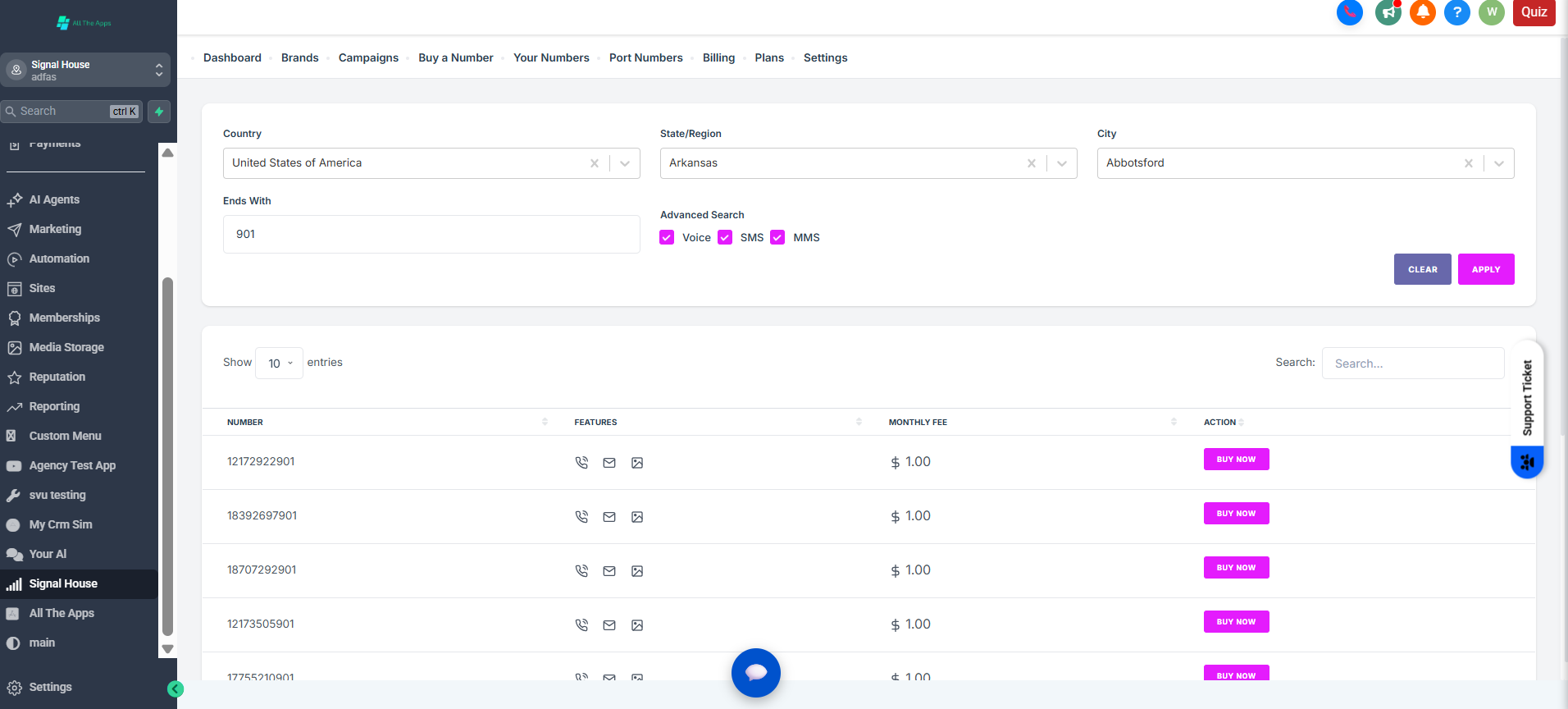
Step 3: View Available Numbers
A list of available numbers will appear with corresponding area codes.
Review your options and choose a number that fits your brand or region.
Step 4: Click “Buy Now”
Once you’ve found a suitable number, click the “Buy Now” button next to it.
Step 5: Assign Number to a Brand & Campaign
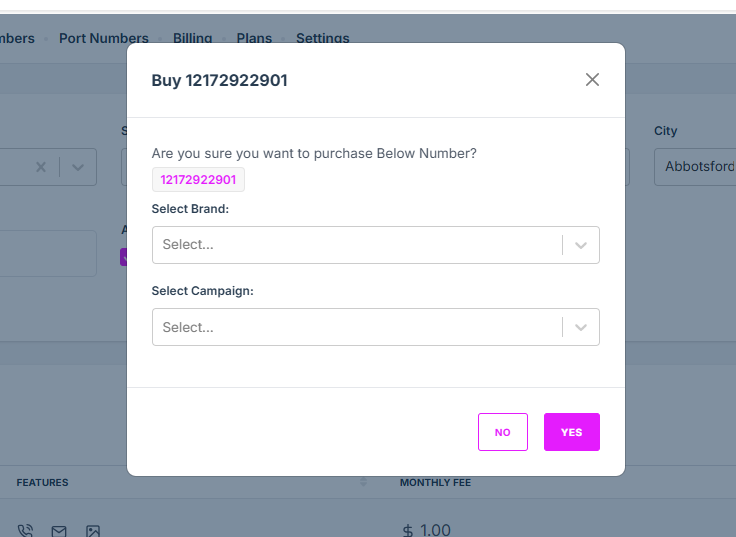
After purchasing, you’ll be prompted to:
Select an existing Brand (must be registered)
Select a Campaign (must be submitted or approved)
📌 You must assign the number to both a brand and a campaign to start sending messages.
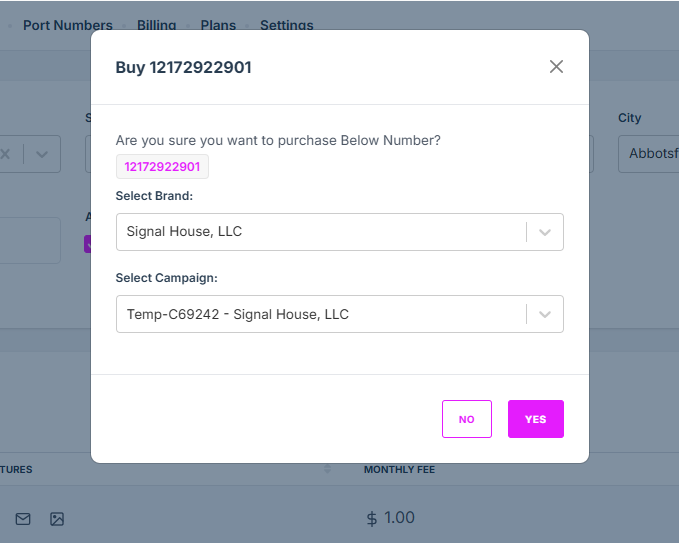
Step 6: Confirm Assignment
After submitting, the number will be automatically:
Registered under the selected Brand
Linked to the chosen Campaign ID
You’ll be able to see the assigned number inside your campaign’s settings.
✅ Pro Tips
Tip | Details |
|---|---|
Need multiple numbers? | Repeat the above process to assign each one individually (Multi-number purchase coming soon!) |
Want a matching area code? | Use the area code filter to keep branding consistent. |
Campaign not ready yet? | You can still buy and hold the number until assignment. |
🔧 Need Support?
📧 Email us at support@signalhouse.io
💬 Chat live via your Signal House dashboard